Create a Search Engine
A search engine ties together a project, a feed, and all the search configuration. Go to Search → Search Engines → New search engine to create one.
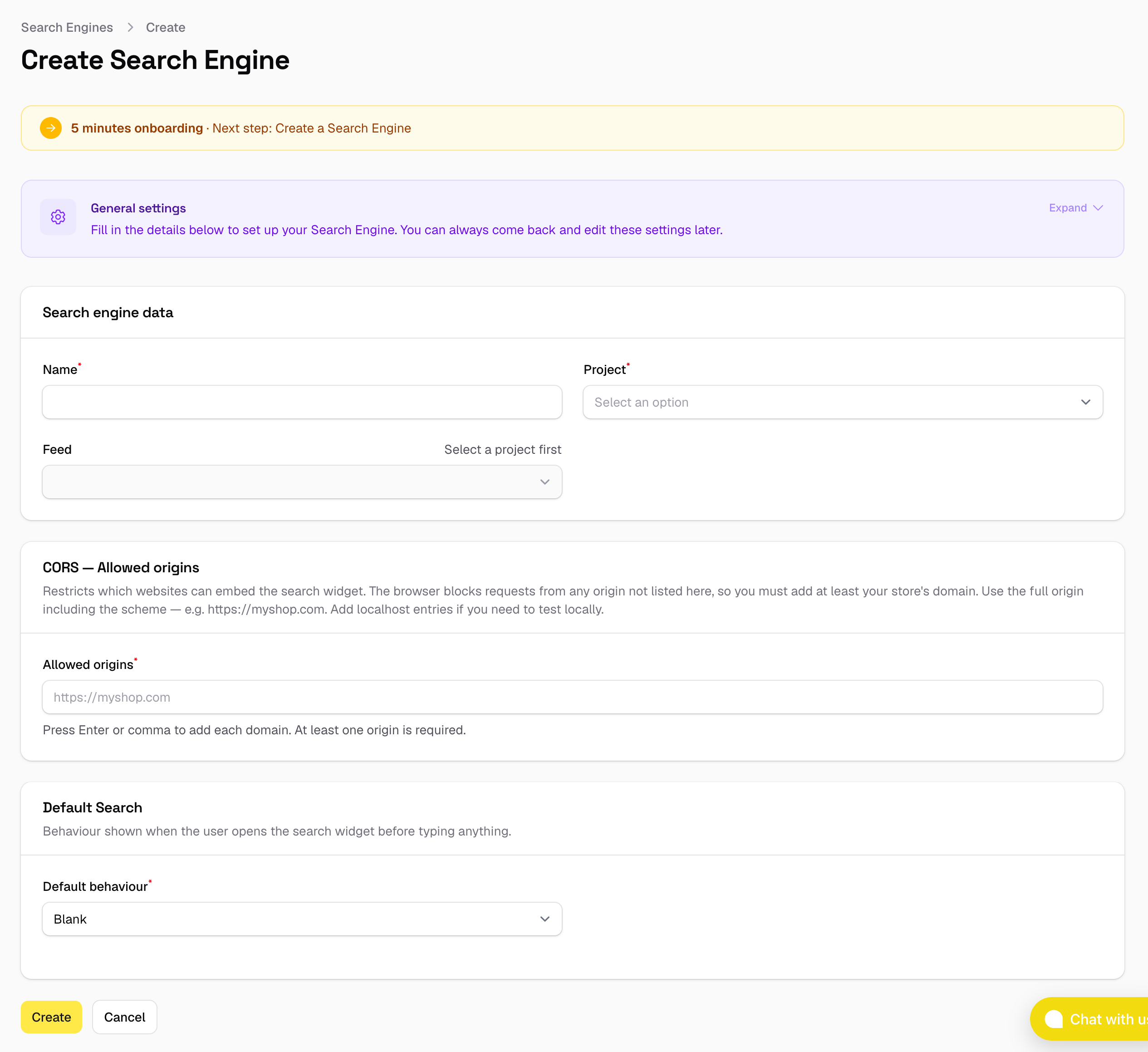
Basic data
| Field | Description |
|---|---|
| Name | A label to identify this search engine in the panel. |
| Project | The project this engine belongs to. |
| Feed | The feed whose products will be indexed and searched. Select a project first — only feeds belonging to that project are shown. |
CORS — Allowed origins
CORS (Cross-Origin Resource Sharing) controls which websites are allowed to make requests to your search engine. The browser enforces this automatically: any request coming from a domain not on the list will be blocked before it reaches SoloSearch.
You must add at least the domain of the shop where the widget will be installed. Use the full origin including the scheme:
https://myshop.com
localhost, add http://localhost or http://localhost:3000 to Allowed origins temporarily.
Press Enter or comma after each domain to add it to the list.
Default View
The Default View is what the widget shows when a user opens it before typing anything. There are three options:
| Option | What is shown |
|---|---|
| Blank | Nothing. The widget opens empty and waits for input. |
| Search | Runs a predefined search query automatically. Enter the query in the field that appears. Useful for showcasing a popular category or campaign. |
| Product list | Shows a specific set of products by ID. Enter the product IDs comma-separated in the field that appears. Useful for featuring promoted or recommended items. |
For Search and Product list, you can set a Heading text shown above the results (e.g. "Recommended products"). It only appears when this field is filled in — leave it empty to show no heading at all.
Regardless of the Default View option chosen, the widget automatically enriches the experience when using the popup or fullscreen layout:
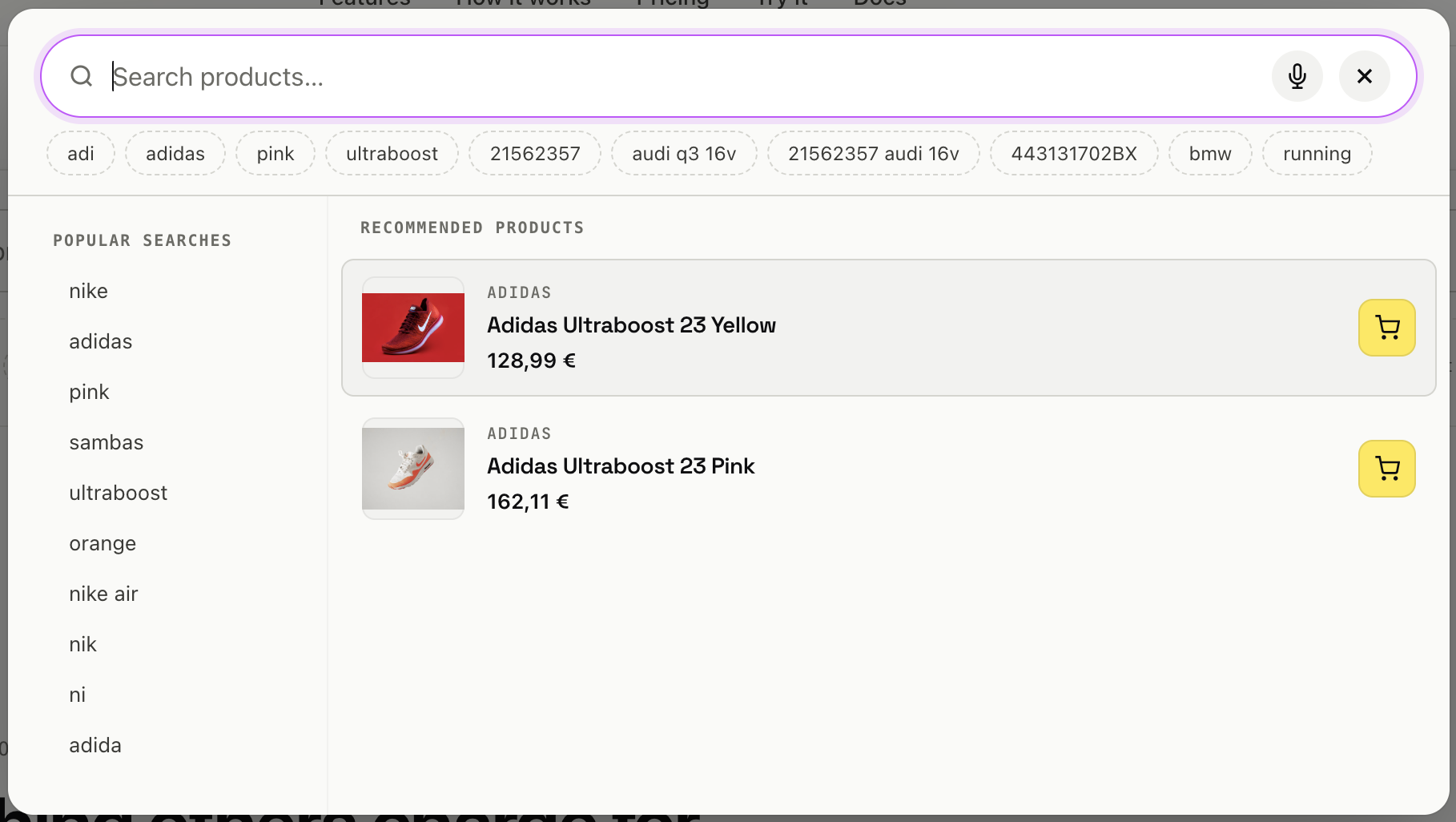
- Top of the panel — the user's own recent searches, so they can quickly pick up where they left off.
- Left side of the panel — the most frequent searches across all users of this search engine, giving new visitors a starting point based on what others are searching for.
Installation
Once the search engine is saved, a Snippet section appears at the bottom of the page with a ready-to-use <script> tag. We will cover this in detail in Install the script.