Configure Feed Fields
When you first save a feed, SoloSearch creates a default set of fields based on the standard Google Shopping schema. You can find them under Configuration → Feeds → [your feed] → Feed Fields.
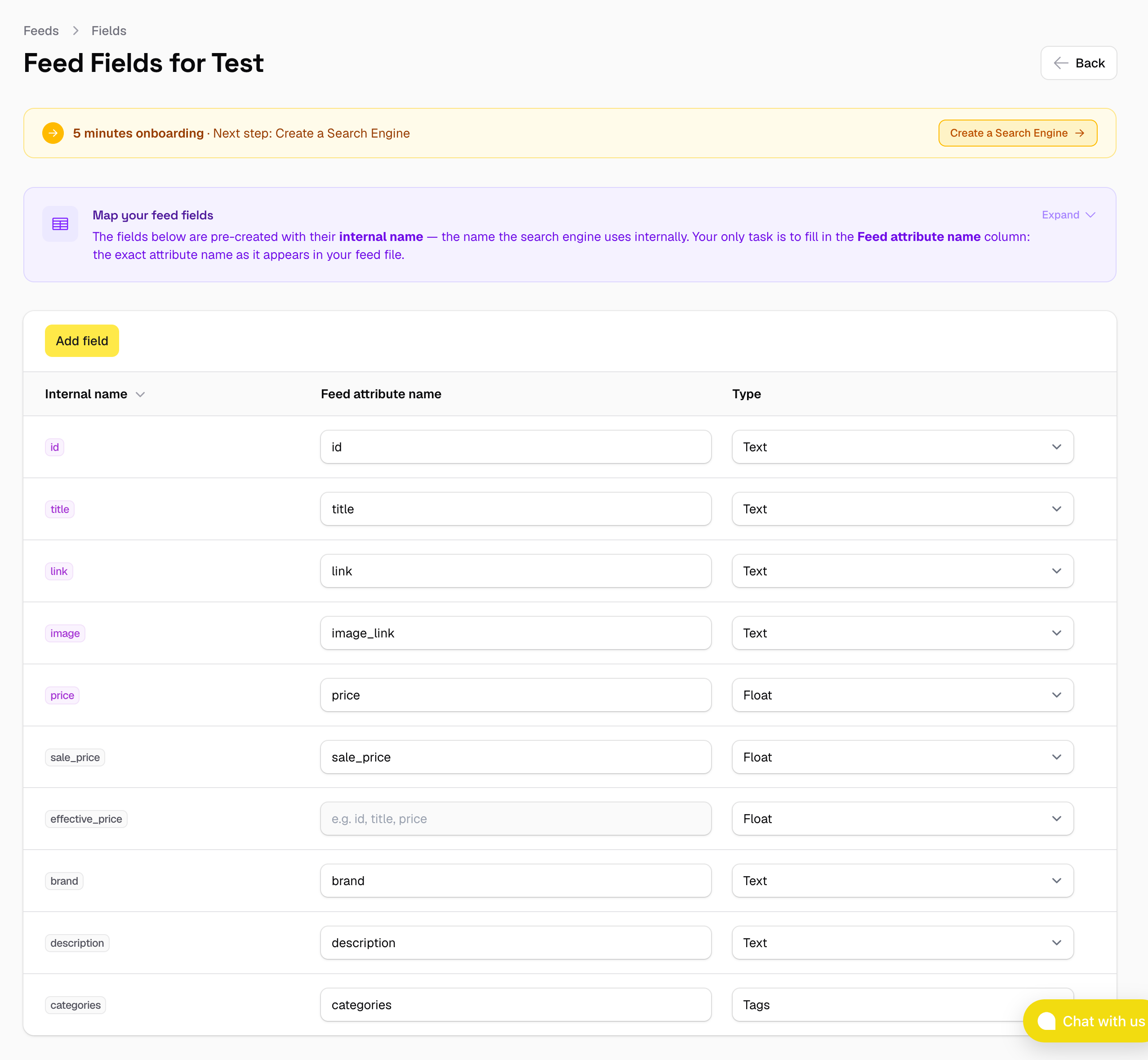
Each field has three columns:
- Internal name — a normalised name that SoloSearch uses internally for fields that have a known, fixed purpose:
titleis always the product name,priceis always the price,imageis always the image URL, and so on. The widget and other parts of the platform rely on these names to work correctly. This column is fixed and cannot be changed. - Feed attribute name — the name of the element or column in your feed file that contains this value. Edit this to match your feed if it uses different names.
- Type — the data type of the field. See below.
Default fields
| Internal name | What it maps to |
|---|---|
id |
Product identifier (required) |
title |
Product name (required) |
link |
Product URL (required) |
description |
Long description |
image |
Main product image |
price |
Regular price |
sale_price |
Discounted price, if any |
currency |
Price currency |
brand |
Brand or manufacturer |
categories |
Category path |
gtin |
EAN / barcode |
mpn |
Manufacturer part number |
keywords |
Extra search terms |
Not all of these fields will exist in every feed — that is fine. If a field has no matching value in your file, it will simply be empty for all products. You do not need to remove it.
You will need to map each field to the corresponding element or column name in your feed. If your feed uses different names (e.g. ProductName instead of title), update the Feed attribute name column accordingly.
Calculated fields
Some fields appear in the list but cannot be mapped to a feed attribute — their Feed attribute name column is locked. These are calculated fields: SoloSearch computes their value automatically during the Parse step, based on other fields.
| Field | How it is calculated |
|---|---|
effective_price |
sale_price if it is present and greater than zero, otherwise price. |
effective_price represents the actual price a customer would pay at any given moment. It is the field to use when sorting results by price, applying price-based boost rules, or setting up price range filters — rather than using price or sale_price directly, which would give inconsistent results for products on promotion.
Adding custom fields
If your feed contains additional data that is not covered by the default fields — for example a custom attribute like stock, colour, or collection — you can add it with the New field button. Custom fields do not have a fixed internal name: since they are specific to each shop's feed, you choose the name yourself when creating them.
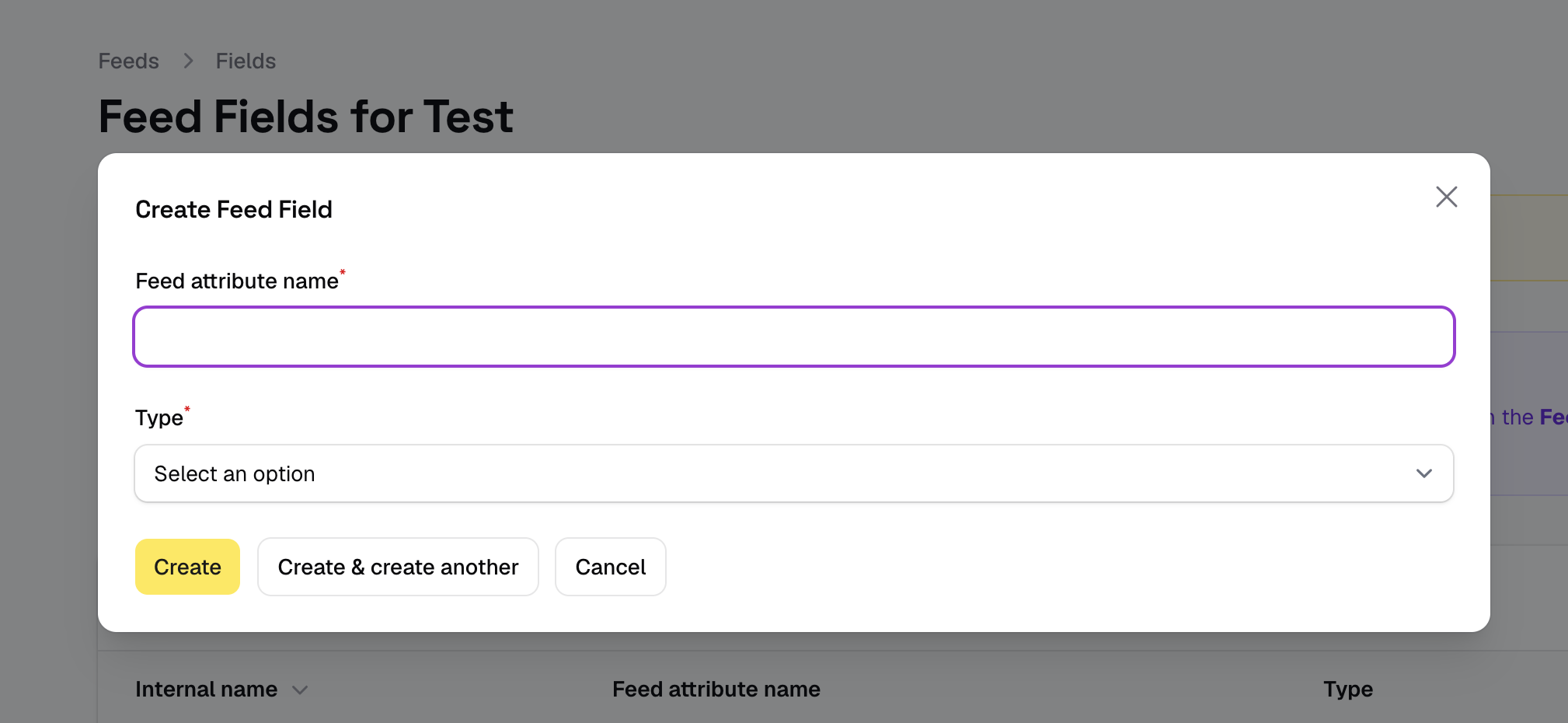
Enter the attribute name as it appears in your feed file and choose the type. That name is used directly throughout the rest of the platform to reference the field — in search fields, filter facets, boost conditions, and boost values.
Field types
The type determines how SoloSearch stores and indexes the field. Choosing the right type matters — it affects how the field behaves in search, filters, and boosts.
| Type | When to use it |
|---|---|
| Text | Any field containing free text: names, descriptions, brands, categories (only if each product has a single category — use Tags instead if products can belong to multiple categories or if the value is a path). Indexed for full-text search and stored as a string. Use this for most fields. |
| Float | Numeric fields used for sorting, range filters, or value-based boosts: price, sale price, stock count, rating. Must contain a valid number. |
| Tags | Fields that contain multiple values separated by a delimiter, like category paths (Footwear > Running > Road) or comma-separated keywords. Each value is indexed individually so users can filter or search by any one of them. The categories field uses this type by default. |