Filters
Filters let users narrow down search results on their own — by brand, category, price range, or any other field in your feed. Instead of scrolling through every result, users can select one or more filter values and see only the products that match.
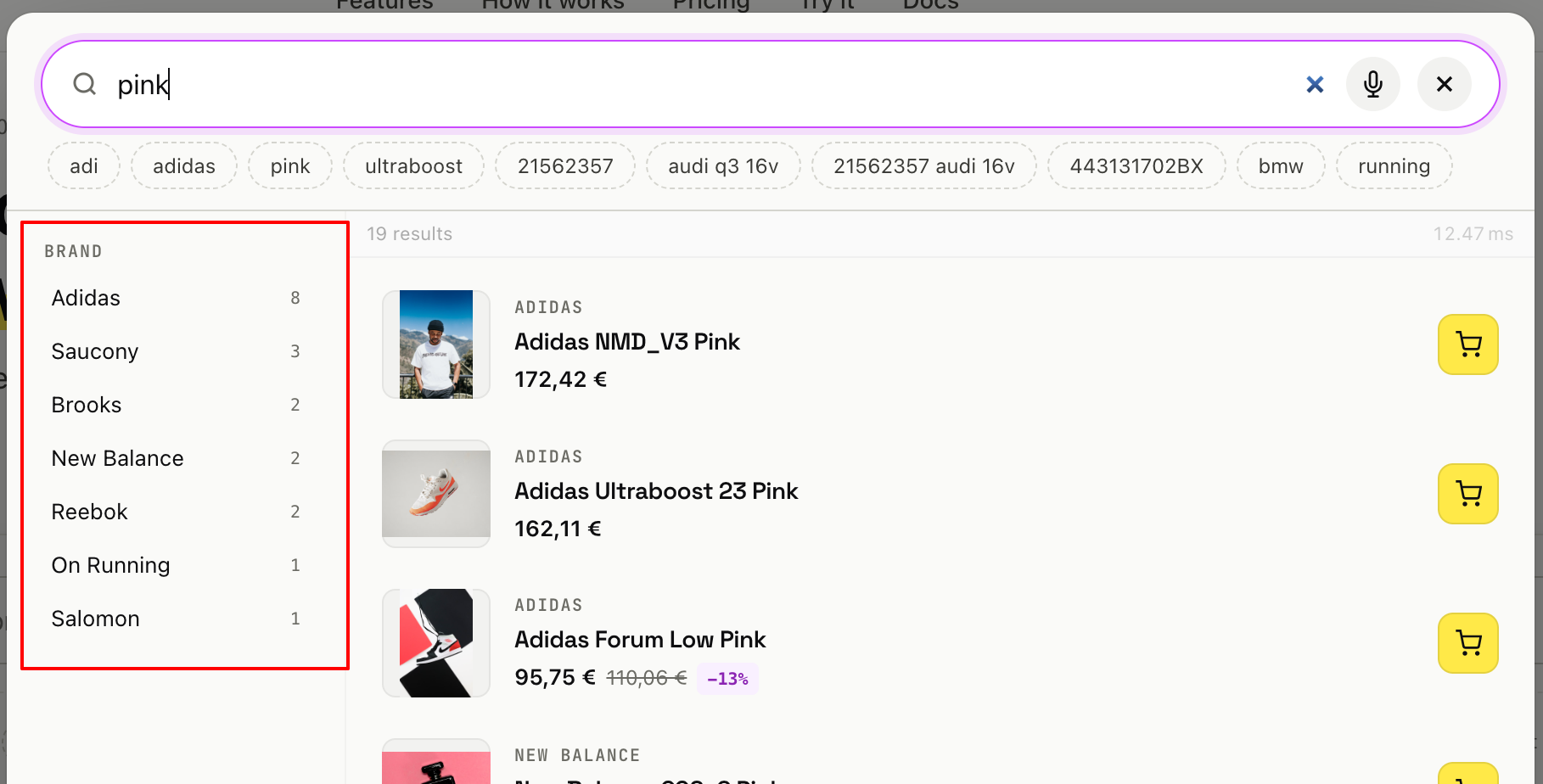
This is known as faceted search: for each active filter, the widget shows the available values dynamically based on the current results, and updates them as the user refines the query.
Filters appear in the sidebar of the popup and fullscreen widget layouts. The dropdown layout does not support filters — if your search engine uses the dropdown layout, filters will not be shown even if they are configured.
Go to Search → Search Engines → [your engine] → Filters.
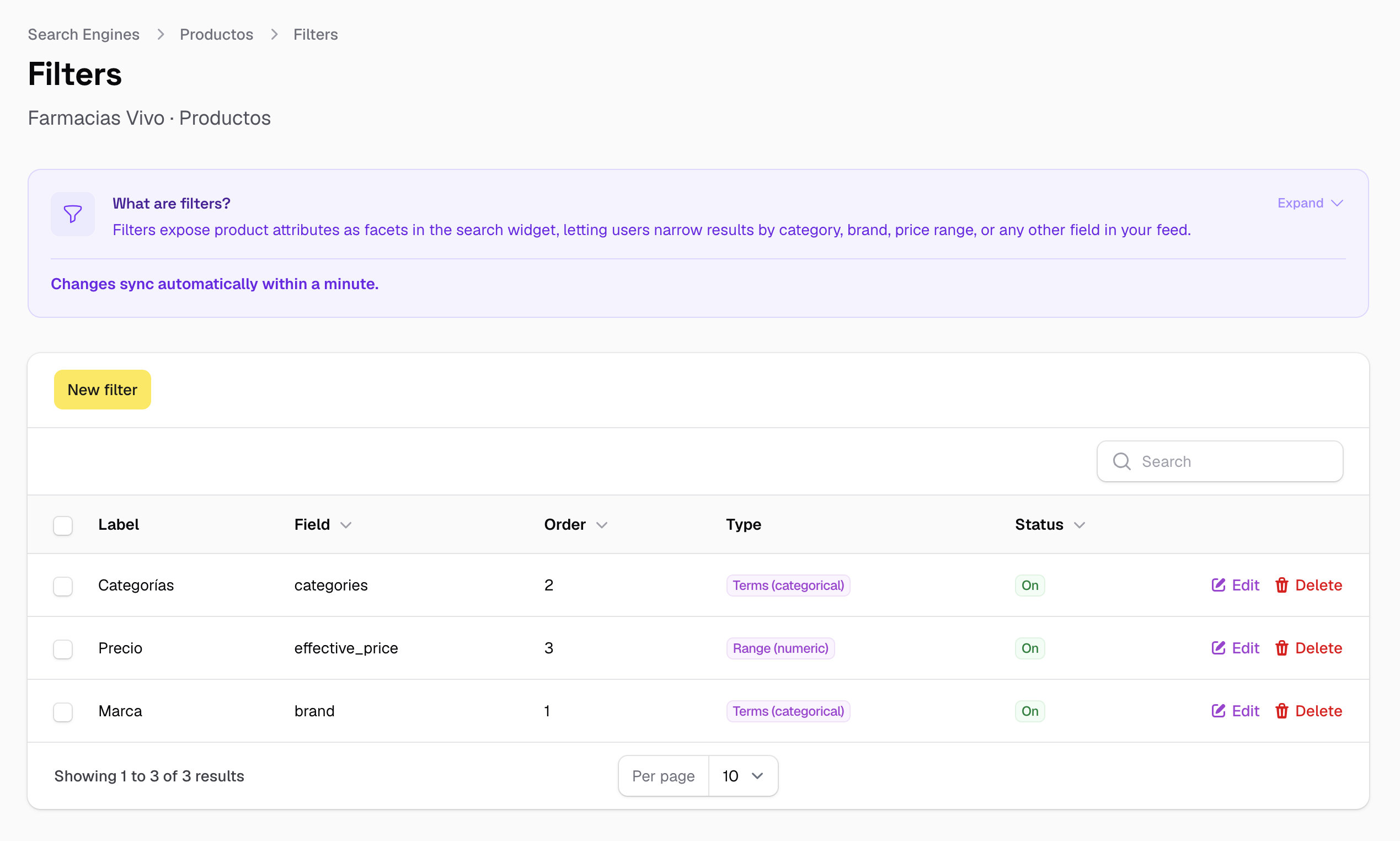
Filter types
There are two types of filter, chosen based on the nature of the field:
| Type | How it works | When to use it |
|---|---|---|
| Terms (categorical) | Shows a list of checkboxes, one per distinct value found in the results. The user selects one or more values to include. | Fields with a discrete set of values: brand, categories, colour, size. Use with Text or Tags field types. |
| Range (numeric) | Shows a min/max slider. The user drags the handles to set a price range or any other numeric boundary. | Numeric fields: price, sale_price, effective_price, rating. Use with Float field type. |
For price filtering, effective_price is the recommended field — it always reflects the actual selling price (sale price if active, regular price otherwise), so the filter behaves correctly for products on promotion. See Configure Feed Fields for more on calculated fields.
Float field works with Range filters; Text and Tags fields work with Terms filters. Using a mismatched combination will produce incorrect results.
Fields
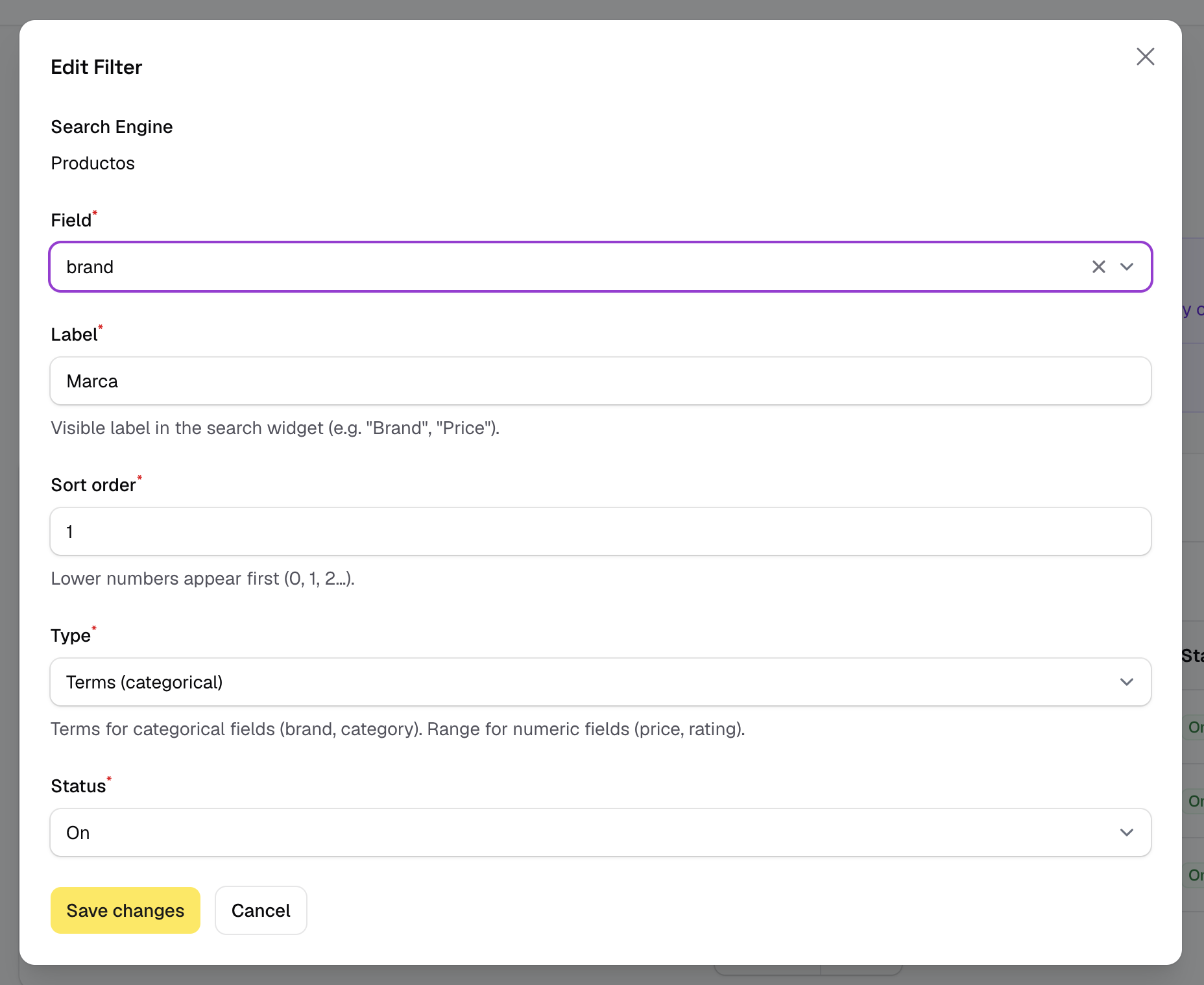
| Field | Description |
|---|---|
| Field | The feed field whose values will be used to build the filter. |
| Label | The heading shown above the filter in the widget — use something readable for end users, e.g. Brand, Price, Category. |
| Sort order | Controls the position of the filter in the sidebar. Lower numbers appear first (0, 1, 2…). Put the most useful filters at the top. |
| Type | Terms or Range. See above. |
| Status | Active or inactive. |
Enabling and disabling
Each filter has a status toggle. Disable a filter to hide it from the widget without deleting it — useful if you want to test different filter configurations or temporarily remove a filter.
Changes take effect automatically
Filter changes — adding, editing, reordering, or toggling — are synced to the search engine automatically within about a minute. No Feed Reindex is needed.