Basic Concepts
A quick reference for the terms you will encounter throughout the panel and this documentation.
Project
A project is the top-level container for a shop or site. It groups all the feeds and search engines that belong to the same tenant. You will typically create one project per shop.
Feed
A feed is a plain text file — in XML or CSV format — that lists your products and their attributes. Your ecommerce platform usually generates one automatically (for example, a Google Shopping export). SoloSearch runs a Feed Reindex on a schedule — fetching, parsing, and publishing the products to the search index so they can be searched.
A minimal XML feed with a single product looks like this:
<?xml version="1.0" encoding="UTF-8"?>
<products>
  <product>
    <id>SKU-001</id>
    <title>Running Shoes</title>
    <price>89.99</price>
    <link>https://myshop.com/running-shoes</link>
    <image>https://myshop.com/images/shoes.jpg</image>
  </product>
</products>
Search Engine
A search engine is the configured search instance for a project. It links a project to a feed and defines how search works: which fields are indexed, their relative weights, synonyms, filters, boosts, and which domains are allowed to use it. Each project can have more than one search engine.
Widget
The widget is the search experience visible to end users in your shop — the input field, the results overlay or dropdown, and everything the shopper sees and interacts with. The widget is loaded and driven by the snippet.
Snippet / Script tag
The snippet is the <script> tag you paste into your shop's HTML. It loads the widget code from SoloSearch and configures it via data-* attributes. At minimum you need two attributes — data-engine (the UUID of your search engine) and data-api (the API server URL). The panel generates a ready-to-use snippet for each search engine under General → Snippet.
<script
  src="https://search.solosearch.app/widget.js"
  data-engine="c4b119f6-321e-4268-9d98-8d030f6dfb1a"
  data-api="https://search.solosearch.app"
  defer
></script>
Template Set
A template set is the design applied to the widget — the HTML and CSS that render the search box, the results, filters, and product cards. SoloSearch ships with several ready-to-use template sets out of the box, and they are fully customisable: duplicate one and edit it in the panel under Design → Template Sets, or build your own from scratch.
Anchored vs. overlay
Each template set defines its own rendering mode:
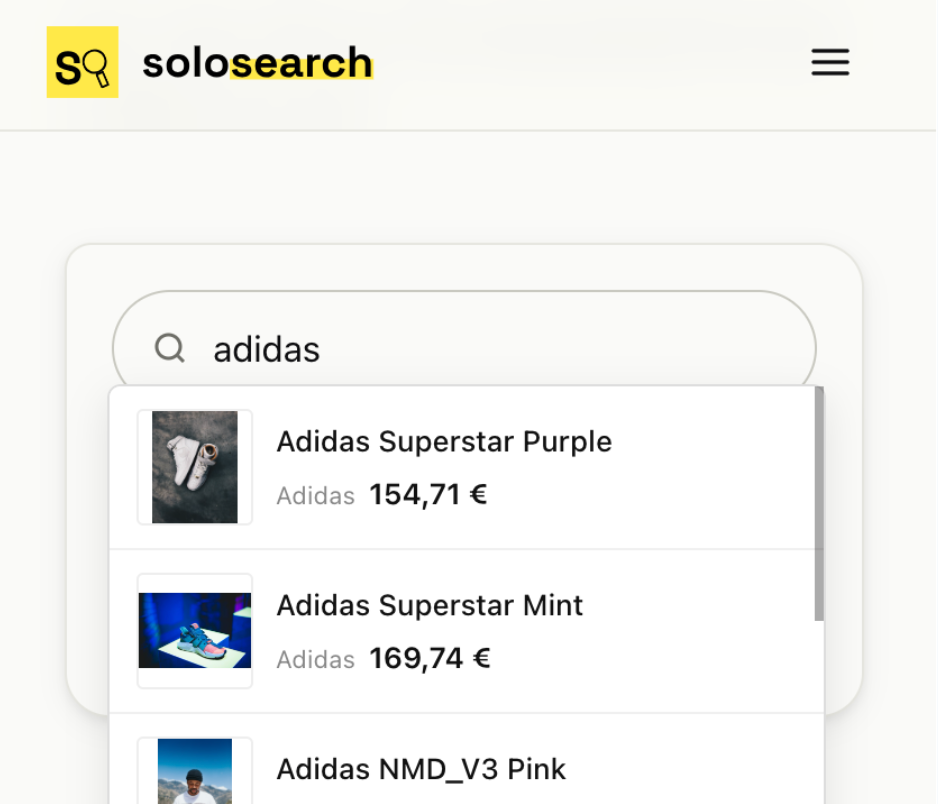
Anchored — results appear inline, directly below the search input, without covering the rest of the page. The shopper stays in context while typing.
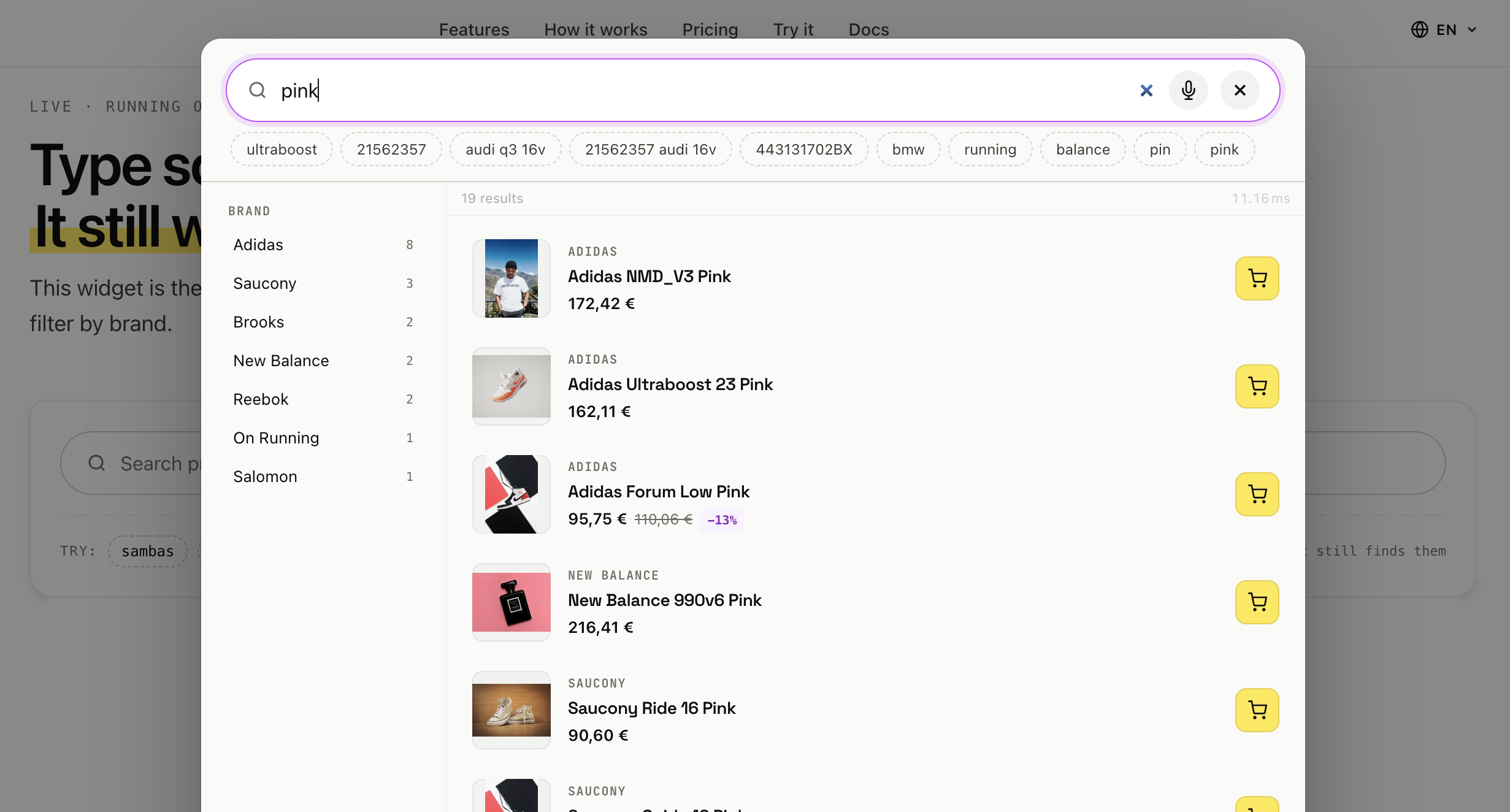
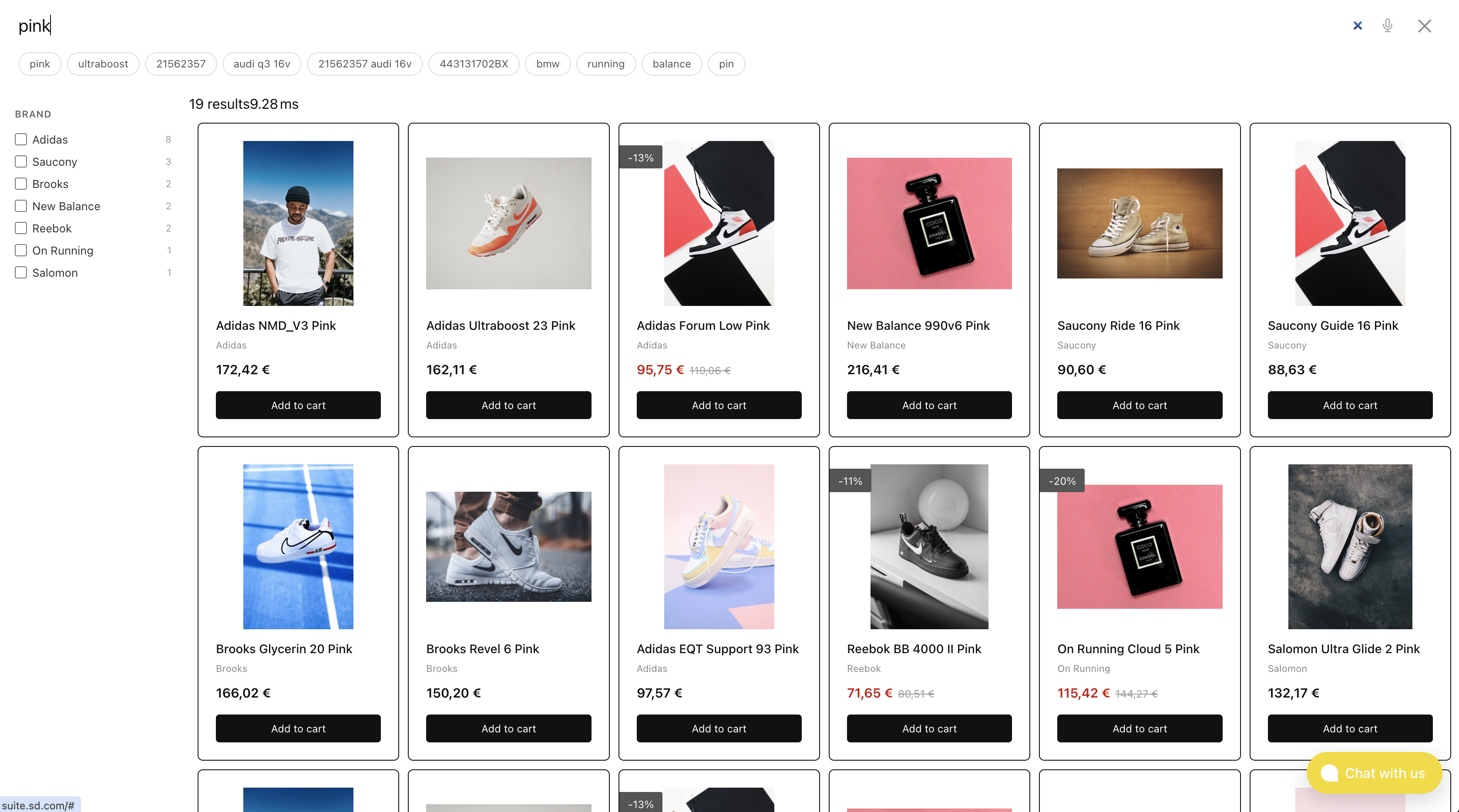
Overlay — results open in a panel above the page content, either centred or taking up the full viewport. Better suited for catalogues with many filters, or a more immersive browsing experience.
You can browse all the standard template sets — plus a few fully custom ones built for real shops — on the Demos page.
Fuzzy Search
Fuzzy search is the ability of the search engine to find results even when the query contains small typing errors. Instead of requiring an exact character-by-character match, it accepts terms that are close to what was typed.
The closeness is measured by the number of single-character edits needed to transform one word into another — insertions, deletions, substitutions, or transpositions. This is known as edit distance. For example, "snakers" is one edit away from "sneakers" (one missing character), so the search engine treats them as a match.
SoloSearch applies fuzzy matching automatically for queries above a minimum length. Short queries (one or two characters) use exact matching to avoid irrelevant results; longer queries allow one or two edits depending on the term length. No configuration is needed — it works out of the box.
This is why synonyms for small misspellings are usually unnecessary. Synonyms are more useful for structurally different terms that share the same meaning, like trainers and sneakers.
CORS / Allowed Origins
For security, each search engine only responds to requests coming from domains you have explicitly authorised. These are the allowed origins — typically the domain of your shop (e.g. https://myshop.com).
If the widget is not loading or returning results, check that your shop's domain is listed under General → Allowed Origins.