Add a new feed
A feed connects SoloSearch to your product catalogue. Go to Configuration → Feeds → New feed to create one.
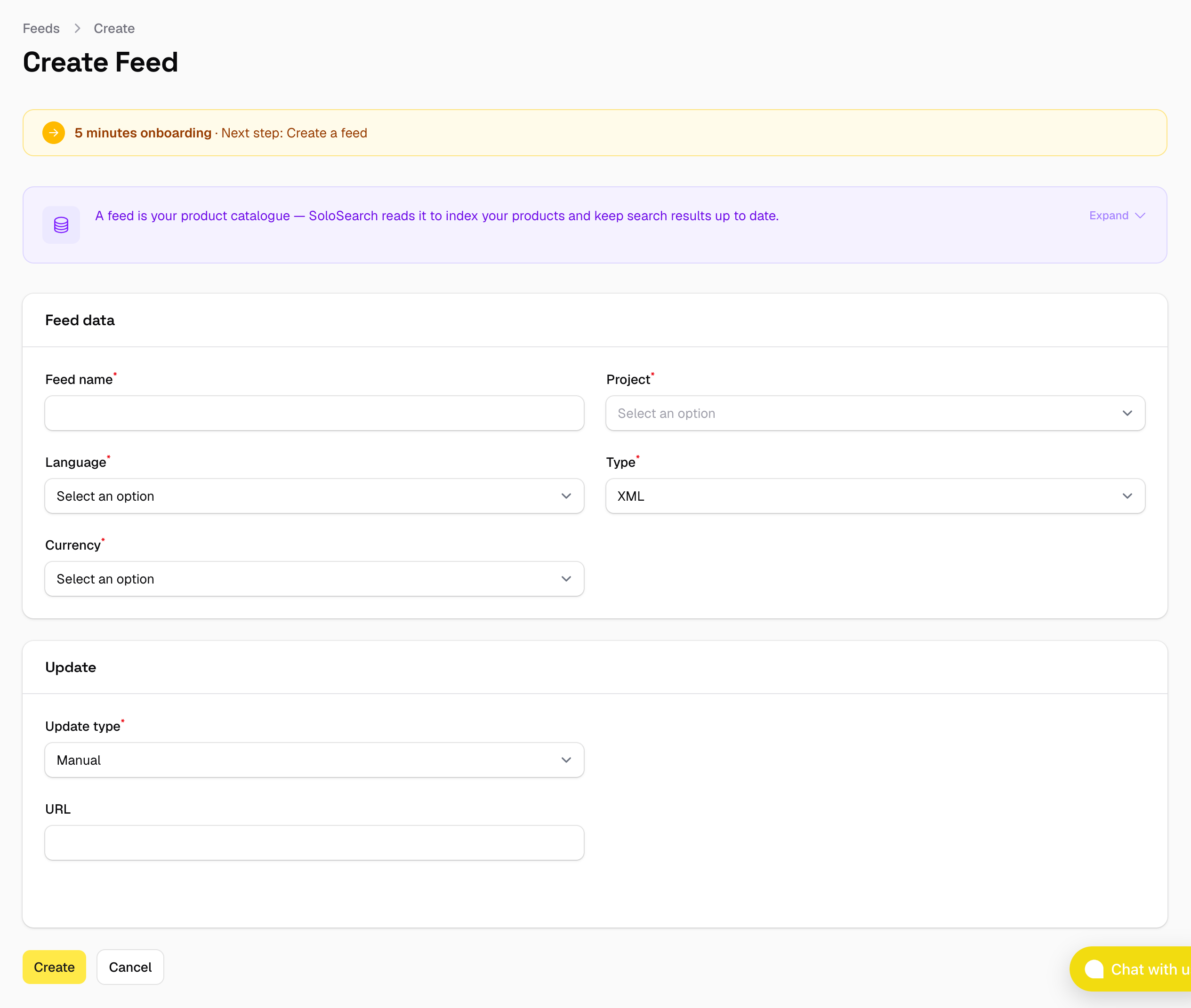
Feed data
| Field | Description |
|---|---|
| Feed name | A label to identify this feed in the panel. |
| Project | The project this feed belongs to. |
| Language | The language of the product content (es, en, fr, de, pt). Used for text analysis during indexing. |
| Type | The format of the feed file: XML or CSV. |
| Currency | The currency used for prices in the feed (EUR or USD). Reserved for future use — more currencies will be added. |
Update type
The update type controls how SoloSearch keeps the feed up to date. It is the most important setting when creating a feed.
| Type | How it works |
|---|---|
| Daily | SoloSearch downloads the feed automatically once a day at the time you choose (UTC). |
| Weekly | SoloSearch downloads the feed automatically once a week on the day and time you choose (UTC). |
| Manual | SoloSearch downloads the feed from the URL only when you trigger it from the panel. |
| Upload | You upload the file directly each time. No URL needed. |
We recommend Daily or Weekly for most shops. Automatic downloads mean the search index stays current without any action on your part — prices, stock levels, and new products are picked up on the next scheduled run.
Manual is useful during initial setup or testing.
Upload is provided as a fallback for shops that cannot expose a public feed URL, but it requires you to remember to upload a new file every time your catalogue changes.
A Feed Reindex can also be triggered manually at any time regardless of the scheduled type. See Manual fetch for details.
Feed URL
The public URL SoloSearch fetches the feed file from. Required for Daily, Weekly, and Manual — not shown for Upload, which has no URL at all.
Authentication
If the URL is protected with HTTP Basic Auth, expand the Authentication section (collapsed by default, since most feeds don't need it) and enter the Username and Password. SoloSearch will send them as an Authorization: Basic header on every fetch.
The password field is never shown, even after saving — it's stored encrypted, and the field only displays a placeholder indicating one is already set. Leave it blank when editing the feed to keep the current password; enter a new value to replace it.