Configure Search Fields
Search fields define which product attributes SoloSearch looks at when a user types a query, and how much each one contributes to the ranking of results.
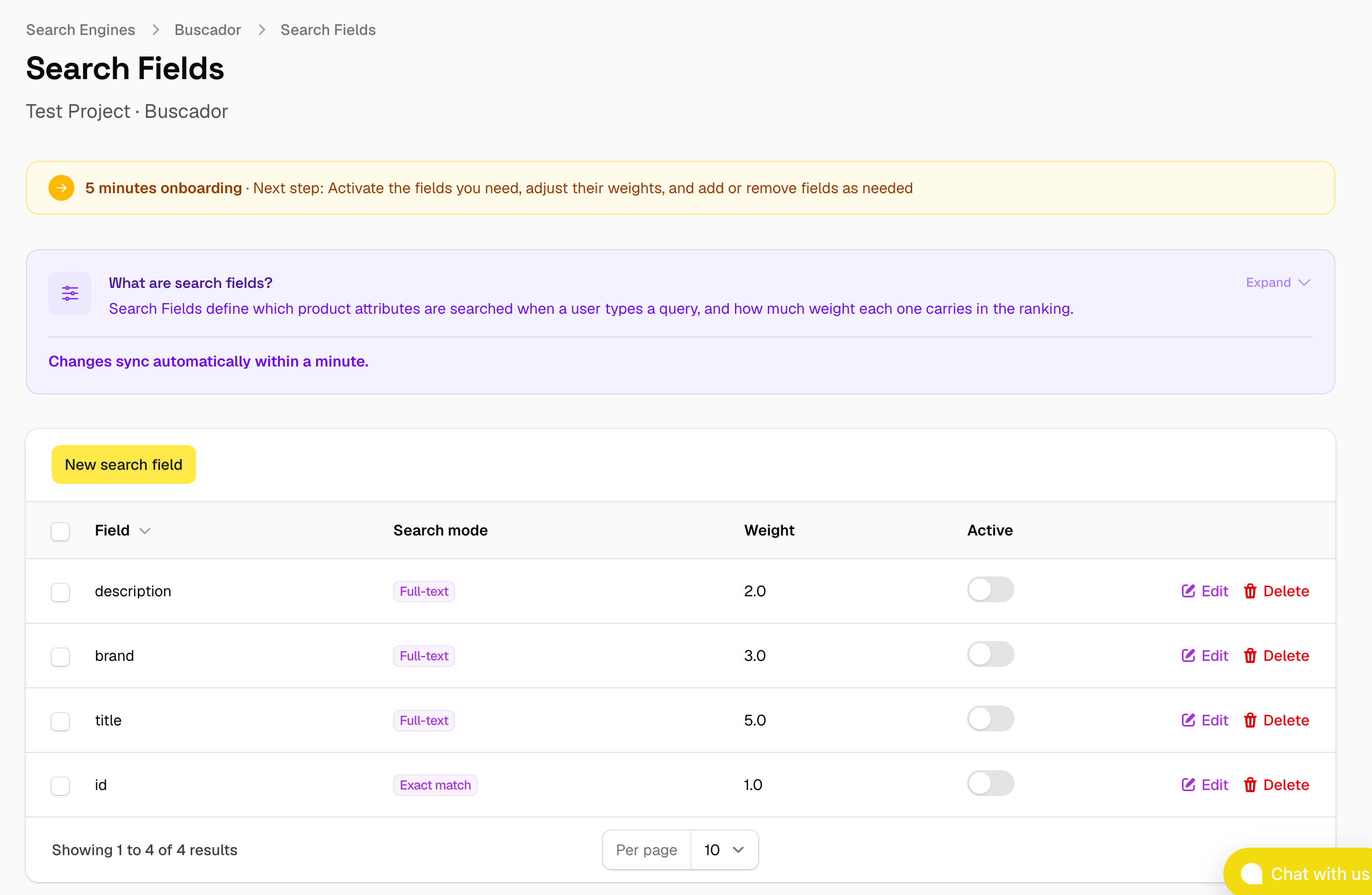
Default fields
When a search engine is created, a set of fields is pre-configured automatically based on the feed's content:
| Field | Search mode | Default weight |
|---|---|---|
title |
Full-text | 5.0 |
brand |
Full-text | 3.0 |
description |
Full-text | 2.0 |
id |
Exact match | 1.0 |
These fields are created with a sensible starting configuration. You only need to activate the ones you want — use the toggle in the Active column. Changes take effect automatically within about a minute, with no need to trigger a Feed Reindex.
Weights and ranking
The weight of a field controls how much a match in that field influences the position of a result. The higher the weight, the more a match in that field pushes a product up in the results.
Weights are relative to each other — what matters is the ratio between them, not the absolute values. With the default setup, a match in title (weight 5) counts 2.5× more than a match in description (weight 2), and a match in brand (weight 3) sits in between.
A practical way to think about it: if a user searches for "Nike running shoes", a product whose title is "Nike Air Max Running Shoes" will rank above one where "Nike" only appears in the description, because the title has a higher weight.
You can adjust weights at any time by editing a field. The change is synced automatically.
Search modes
Each field uses one of two search modes, which determines how the query text is matched against that field:
| Mode | How it works | When to use it |
|---|---|---|
| Full-text | The query is analysed, tokenised, and matched against the field content. Handles partial matches, stemming, and natural language. | Prose fields: title, description. |
| Exact match | The query must match the field value exactly (case-insensitive). No analysis or stemming. | Identifiers and categorical values: id, brand, sku. |
For identifier fields — id, SKU, GTIN, EAN — always use Exact match. A shop assistant searching for SKU AIR-MAX-42 or EAN 8412345678901 expects to land on exactly that product, not a ranked list of items whose descriptions happen to contain those characters. Exact match returns only the product whose field value matches the query precisely, making it the right choice whenever users search by a known code.
Adding search fields
If you want to search over additional fields — for example a custom field like colour or collection that you added to your feed — click New search field.
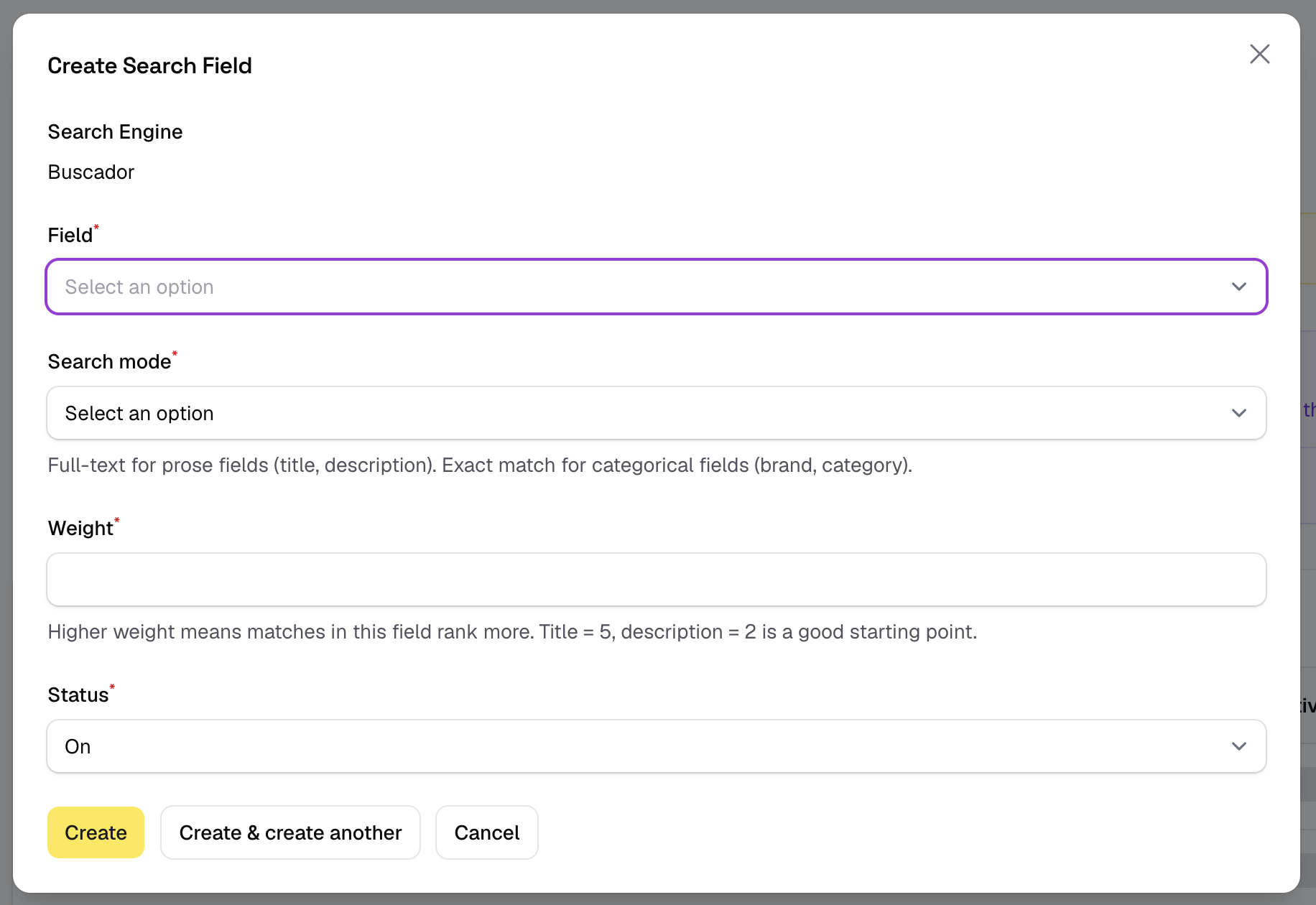
Select the field from the dropdown (all fields from the linked feed are available), choose a search mode, set a weight, and save. The field becomes active immediately and the configuration is synced automatically.